Exercise Search

Exercise Search feature lets you search Options Contracts which were exercised by you in the past. Besides, you can also search those Options contracts for which exercise requests have been placed but are yet to be exercised.
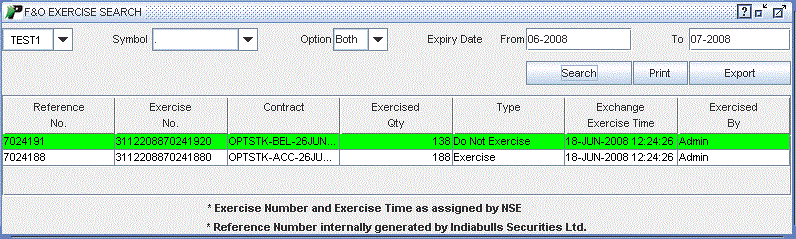
PIB displays you the following window when you select this option:
 |
How to search an Exercise ?
PIB provides you with following options to search an exercise:
-
Symbol – You can choose the underlying scrip for
which you wish to view your exercised contracts.
-
Option – You can search Exercises on the basis of CALL or PUT. In case, you are unsure about it, choose 'Both' option.
- Expiry Date From / To – You can use this option to search those Options contracts which were exercised by you between the two selected dates. Specify the date after which you wish to view exercise(s) in ' From' field. Similarly, specify the date till which you wish to view exercise(s) in 'To' field. These dates will be in format (dd/mm/yyyy).
Once you set the search criteria, click on 'Search' button. On clicking, PIB works on your set criteria and displays you the related records. (You can read about search results in the section below)
Search Results
When you click on ‘Search’ button, PIB displays you Search Results along with the related details. These are:
-
Reference No – It displays Reference
Number of the corresponding contract. On clicking the Reference Number, you can view
the log of all activities that were performed against the corresponding contract. To know more about Reference Number, click here...
-
Exercise No – It displays the exercise
number of the corresponding contract.
-
Contract – It displays the name of the corresponding contract.
-
Exercised Qty – It displays the quantity
that was exercised by you for the given contract.
-
Type – It displays the exercise type
i.e., whether it is opted to "exercise" or "Do not Exercise".
-
Exchange Exercise Time – It displays
exchange’s date and time when the given contract was exercised.
- Exercised By – It indicates who has exercised the corresponding Options contract.
Add-on Features
-
Print - You can take a print out of the
Exercise Search Results by clicking on ‘Print’ button.
- Export - You can download the given details in your PC by clicking on ‘Export’ button. These details will be downloaded in csv format.
Also Read: